
React Native App Not Redirecting After Salesforce OAuth Login

Question
I am building a React Native mobile app that integrates with Salesforce OAuth authentication using the react-native-app-auth package. I have set up a Salesforce Connected App and configured the necessary OAuth settings. Below are details for my connected app.
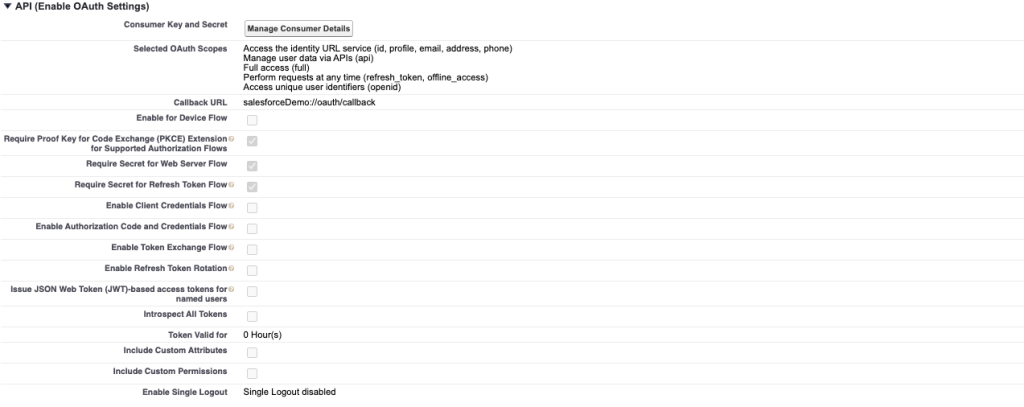
My React Native code is
import React, { useState, useEffect } from 'react';
import { View, Button, Text, Alert, Linking } from 'react-native';
import { authorize, refresh, revoke } from 'react-native-app-auth';

const OAuthComponent = () => {
  // State to hold OAuth token data
  const [authState, setAuthState] = useState(null);

  useEffect(() => {
    const handleOpenURL = (url) => {
      // Handle the incoming URL and extract parameters
      const { path, queryParams } = Linking.parse(url);
      if (path === 'oauth/callback') {
        // Handle successful authentication here
        console.log('Redirected with URL:', url);
      }
    };

    // Add event listener for incoming URLs
    const subscription = Linking.addEventListener('url', handleOpenURL);

    // Cleanup the event listener on unmount
    return () => {
      subscription.remove();
    };
  }, []);
  // OAuth Configuration
  const config = {
    issuer: 'https://login.salesforce.com', // For Salesforce login
    clientId: 'xxxxxxxxx',           // From your Salesforce connected app
    redirectUrl: 'salesforceDemo://oauth/callback', // Match your app's redirect URI
    scopes: ['api', 'refresh_token', 'offline_access'], // Customize based on your needs
  };

  // Function to handle the OAuth login
  const handleLogin = async () => {
    try {
      const result = await authorize(config);  // Initiates the OAuth flow
      setAuthState(result);  // Stores the OAuth token in the state
      Alert.alert('Login Success', 'You are now authenticated');
    } catch (error) {
      Alert.alert('Login Error', error.message);
      console.error('OAuth Error:', error);
    }
  };

  // Function to refresh the access token (if needed)
  const handleRefresh = async () => {
    if (!authState || !authState.refreshToken) return;
    try {
      const newAuthState = await refresh(config, { refreshToken: authState.refreshToken });
      setAuthState(newAuthState);
      Alert.alert('Token Refreshed', 'Your token is refreshed.');
    } catch (error) {
      console.error('Refresh Token Error:', error);
    }
  };

  // Function to revoke the token (logout)
  const handleLogout = async () => {
    if (!authState) return;
    try {
      await revoke(config, { tokenToRevoke: authState.accessToken });
      setAuthState(null);  // Clears the token from the state
      Alert.alert('Logged Out', 'You are now logged out.');
    } catch (error) {
      console.error('Revoke Error:', error);
    }
  };

  return (
    <View style={{ padding: 20 }}>
      <Button title="Login with Salesforce" onPress={handleLogin} />

      {authState && (
        <View style={{ marginTop: 20 }}>
          <Text>Access Token: {authState.accessToken}</Text>
          <Text>Refresh Token: {authState.refreshToken}</Text>
          <Text>Token Expires In: {authState.accessTokenExpirationDate}</Text>

          <Button title="Refresh Token" onPress={handleRefresh} />
          <Button title="Logout" onPress={handleLogout} />
        </View>
      )}
    </View>
  );
};
export default OAuthComponent; I have also added intent-filter in my Android Manifest file. android/app/src/main/AndroidManifest.xml
<application android:name=".MainApplication" android:label="@string/app_name" android:icon="@mipmap/ic_launcher" android:roundIcon="@mipmap/ic_launcher_round" android:allowBackup="false" android:theme="@style/AppTheme">
    <activity android:name=".MainActivity" android:configChanges="keyboard|keyboardHidden|orientation|screenSize|screenLayout|uiMode" android:launchMode="singleTask" android:windowSoftInputMode="adjustResize" android:theme="@style/Theme.App.SplashScreen" android:exported="true">
      <intent-filter>
        <action android:name="android.intent.action.MAIN"/>
        <category android:name="android.intent.category.LAUNCHER"/>
      </intent-filter>
      <intent-filter>
        <action android:name="android.intent.action.VIEW" />

        <category android:name="android.intent.category.DEFAULT" />
        <category android:name="android.intent.category.BROWSABLE" />

        <data android:scheme="salesforceDemo" android:host="oauth/callback" />
    </intent-filter>
    </activity>
    <activity android:name="com.facebook.react.devsupport.DevSettingsActivity" android:exported="false" />
  </application>
My React Native code initiates the login process and displays the Salesforce login screen. After entering credentials, I am redirected to a Salesforce page instead of my app, even though I have set the correct redirect URL and configured the Android intent filter.
I am testing this on an Android Virtual Device (AVD) in Android Studio. I expected the app to handle the redirect and extract authentication details, but it does not. How can I fix this issue and ensure my app correctly captures the OAuth response?
Answer
The issue of not redirecting back to your React Native app after Salesforce OAuth login is typically caused by misconfigurations in the redirect URI, Android intent filters, or deep linking settings. Here are the possible reasons and solutions:
Get practical experience with Learn In Real Time’s interactive Salesforce Online Training, including live projects, certification prep, and interview coaching. Register for a free demo today!
1. Check Redirect URI Consistency
Ensure the redirect URI in your Salesforce Connected App exactly matches the one in your React Native OAuth configuration.
Salesforce Connected App Callback URL:
salesforceDemo://oauth/callbackReact Native OAuth Configuration:
const config = {
  issuer: 'https://login.salesforce.com',
  clientId: 'xxxxxxxxx',
  redirectUrl: 'salesforceDemo://oauth/callback',
  scopes: ['api', 'refresh_token', 'offline_access'],
};
If there is any mismatch in letter case or structure, Salesforce will not recognize your redirect URI correctly.
2. Ensure Intent Filter Matches Redirect URI
Your AndroidManifest.xml must correctly define the deep linking intent filter. You have added it, but verify it exactly matches your redirect URI:
<intent-filter>
    <action android:name="android.intent.action.VIEW" />
    <category android:name="android.intent.category.DEFAULT" />
    <category android:name="android.intent.category.BROWSABLE" />
    <data android:scheme="salesforceDemo" android:host="oauth/callback" />
</intent-filter>
If the scheme or host differs from the redirect URI in Salesforce, the redirection will fail.
3. Modify Linking Event Listener in React Native
Your event listener for handling the redirected URL is correct, but in newer versions of React Native, you need to use Linking.addEventListener differently. Try updating your Linking event listener like this:
useEffect(() => {
  const handleDeepLink = ({ url }) => {
    console.log('Received URL:', url);
  };

  const subscription = Linking.addEventListener('url', handleDeepLink);

  Linking.getInitialURL().then((url) => {
    if (url) handleDeepLink({ url });
  });

  return () => {
    subscription.remove();
  };
}, []);
This ensures your app correctly captures the deep link when returning from Salesforce.
4. Use an Actual Device Instead of an Emulator
Android Virtual Devices sometimes fail to handle deep linking properly. Try testing on a real device to confirm whether the redirection works.
5. Enable Web Authentication for Android
Some versions of react-native-app-auth require explicit enabling of web authentication for deep linking to function properly. Update your OAuth configuration as follows:
const config = {
  issuer: 'https://login.salesforce.com',
  clientId: 'xxxxxxxxx',
  redirectUrl: 'salesforceDemo://oauth/callback',
  scopes: ['api', 'refresh_token', 'offline_access'],
  serviceConfiguration: {
    authorizationEndpoint: 'https://login.salesforce.com/services/oauth2/authorize',
    tokenEndpoint: 'https://login.salesforce.com/services/oauth2/token',
  },
  usePKCE: false, // Set to true if PKCE is required in your Salesforce Connected App
};
This explicitly defines Salesforce OAuth endpoints, making authentication more reliable.
6. Check Android Debug Logs for Errors
If redirection still does not work, check your Android logs for errors using:
adb logcat *:EThis may reveal deep linking errors or permission issues that need fixing.
Conclusion
Your issue is likely due to a mismatch in redirect URI settings, incorrect intent filter, or issues with the Android emulator. Ensure your redirect URI, intent filter, and deep linking listener are correctly set up. If problems persist, test on a real device and check Android logs for errors. After making these fixes, your React Native app should correctly redirect after Salesforce OAuth login.
Fast-Track Your Salesforce Career with Expert Training in Mumbai
Boost your Salesforce expertise with our industry-focused Salesforce Training in Mumbai, designed to prepare you for success in the Salesforce ecosystem. Whether you aspire to be a Salesforce Admin, Developer, or AI Specialist, our structured program blends theoretical knowledge with hands-on experience, ensuring a deep understanding of Salesforce solutions.
Led by industry experts, our curriculum includes real-world projects that build confidence in handling complex Salesforce implementations. We focus on solving practical business challenges, helping you master key functionalities and best practices. Through interactive sessions and hands-on exercises, you’ll develop the problem-solving skills necessary for seamless Salesforce deployment.
Take the first step toward a successful Salesforce career—sign up for a free demo today!

